



Account registration and setup.
This guide walks you step by step through the registration of your user/trainer account on the VR Speech Trainer platform. You will learn how to redeem your license key, set up your account, and subsequently manage users. The guide is specifically aimed at trainers, companies, and educational institutions using the enterprise licensing model and helps you get started with training quickly and easily.
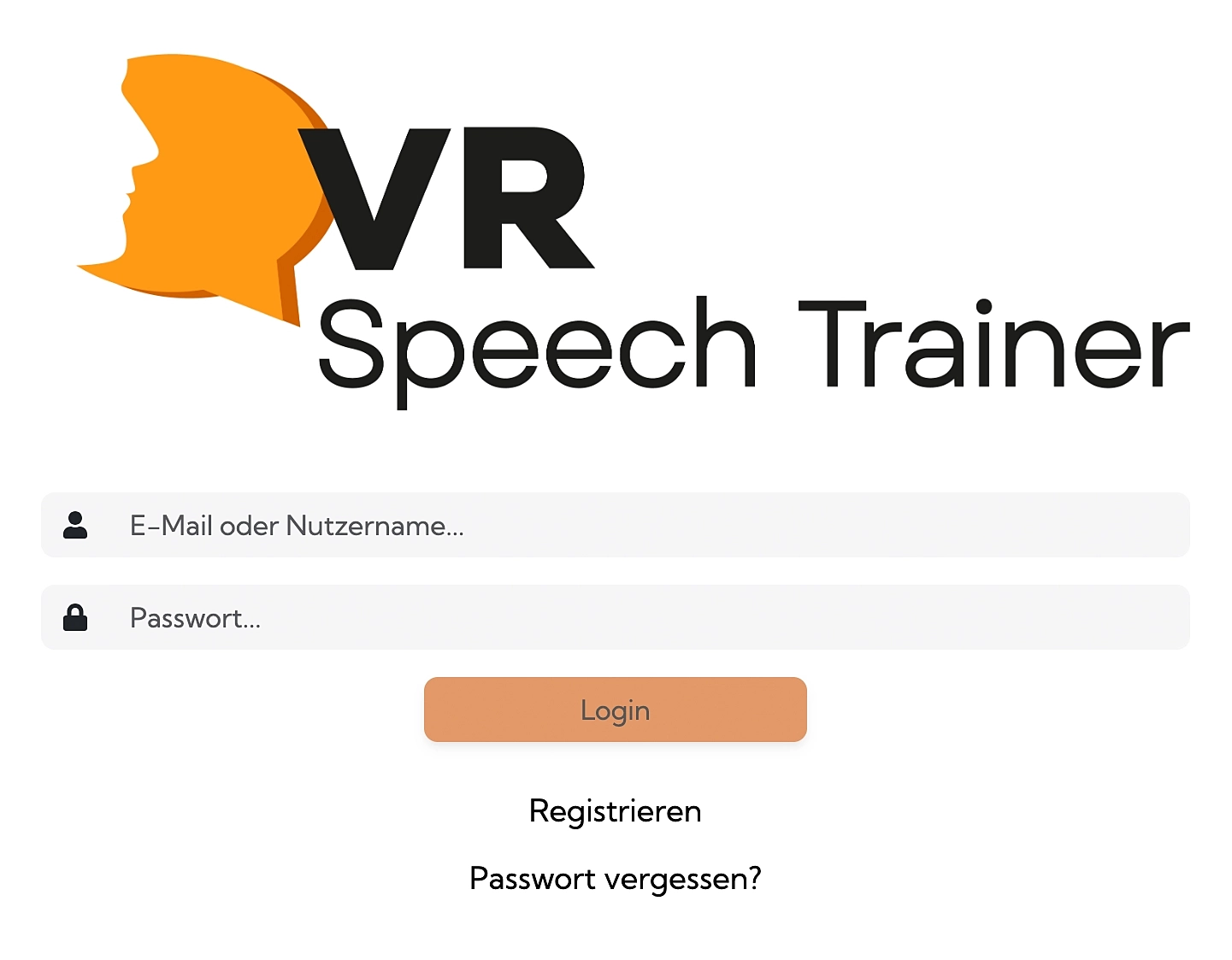
Enter License Key and Email Address
On the homepage, you’ll find the registration form.
Enter your Trainer license key in the top field
Enter your email address
Click the “Register” button
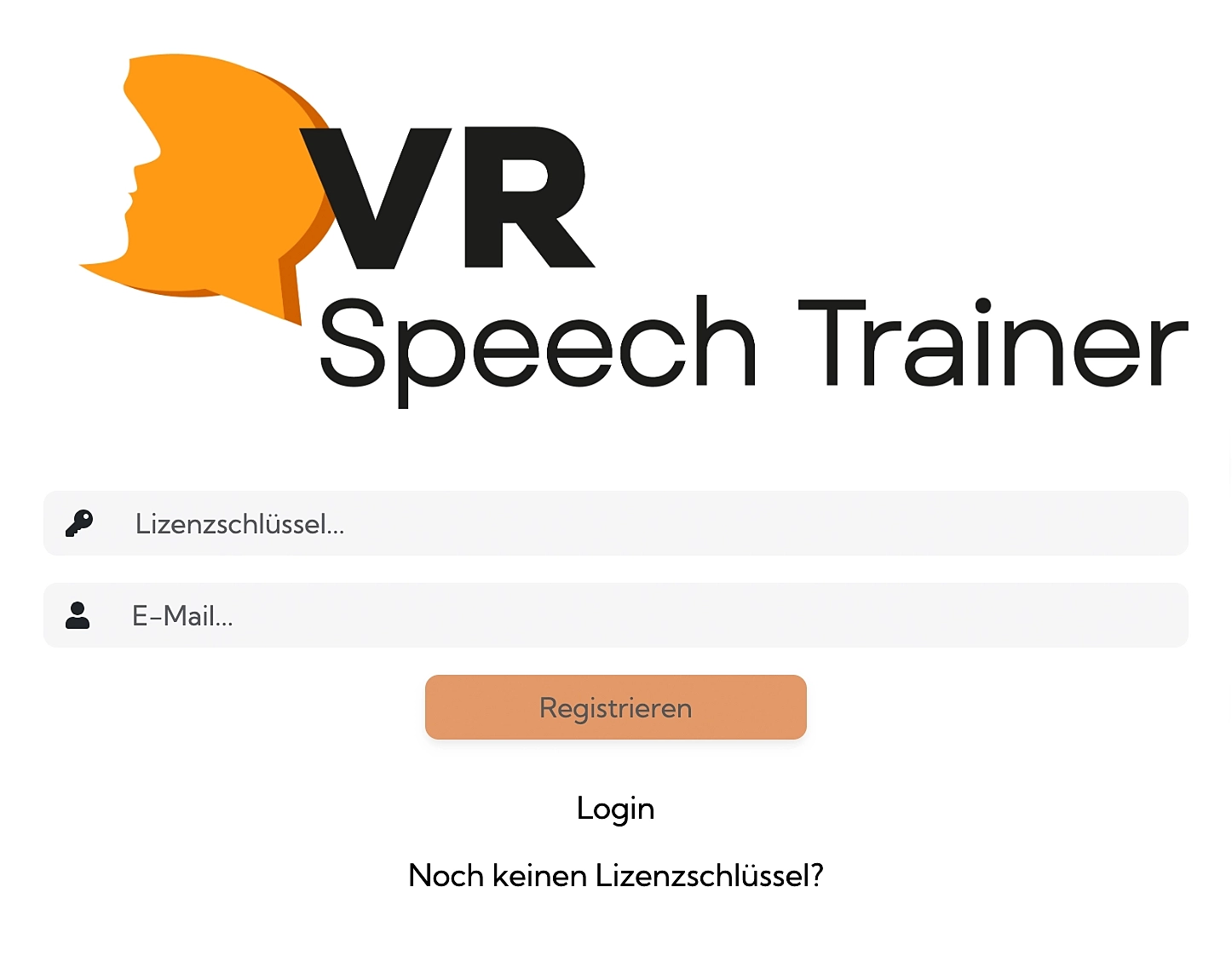
Receive Confirmation Email
You will automatically receive a confirmation email at the provided email address.
Check your spam folder if the email doesn’t arrive within a few minutes.
Click Confirmation Link in Email
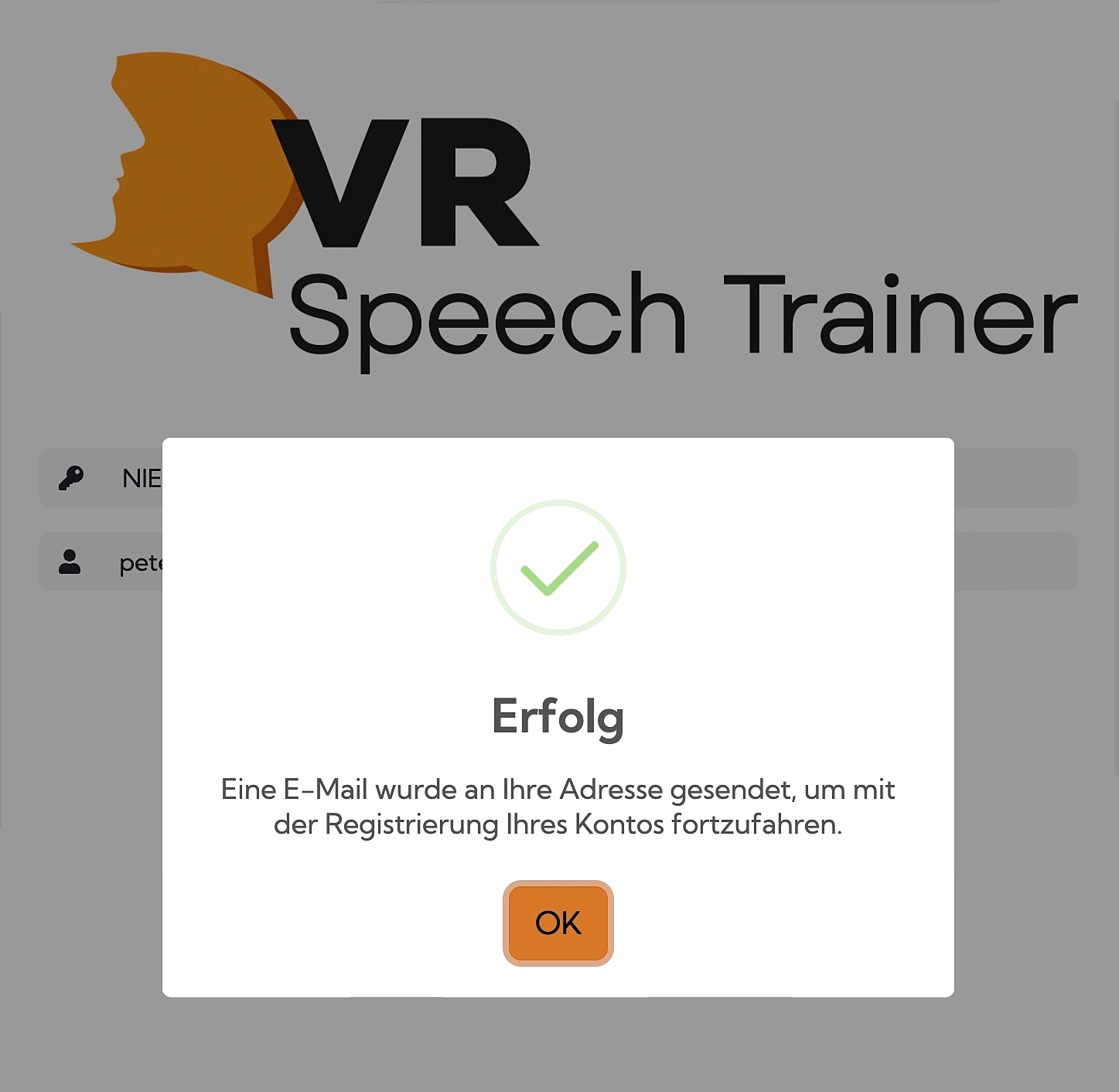
Open the confirmation email and click the “Register” button in the email.
The confirmation link is valid for 24 hours only. If you don’t complete registration within this time, visit trainer.vr-speech.com and click “Register” to restart the process.
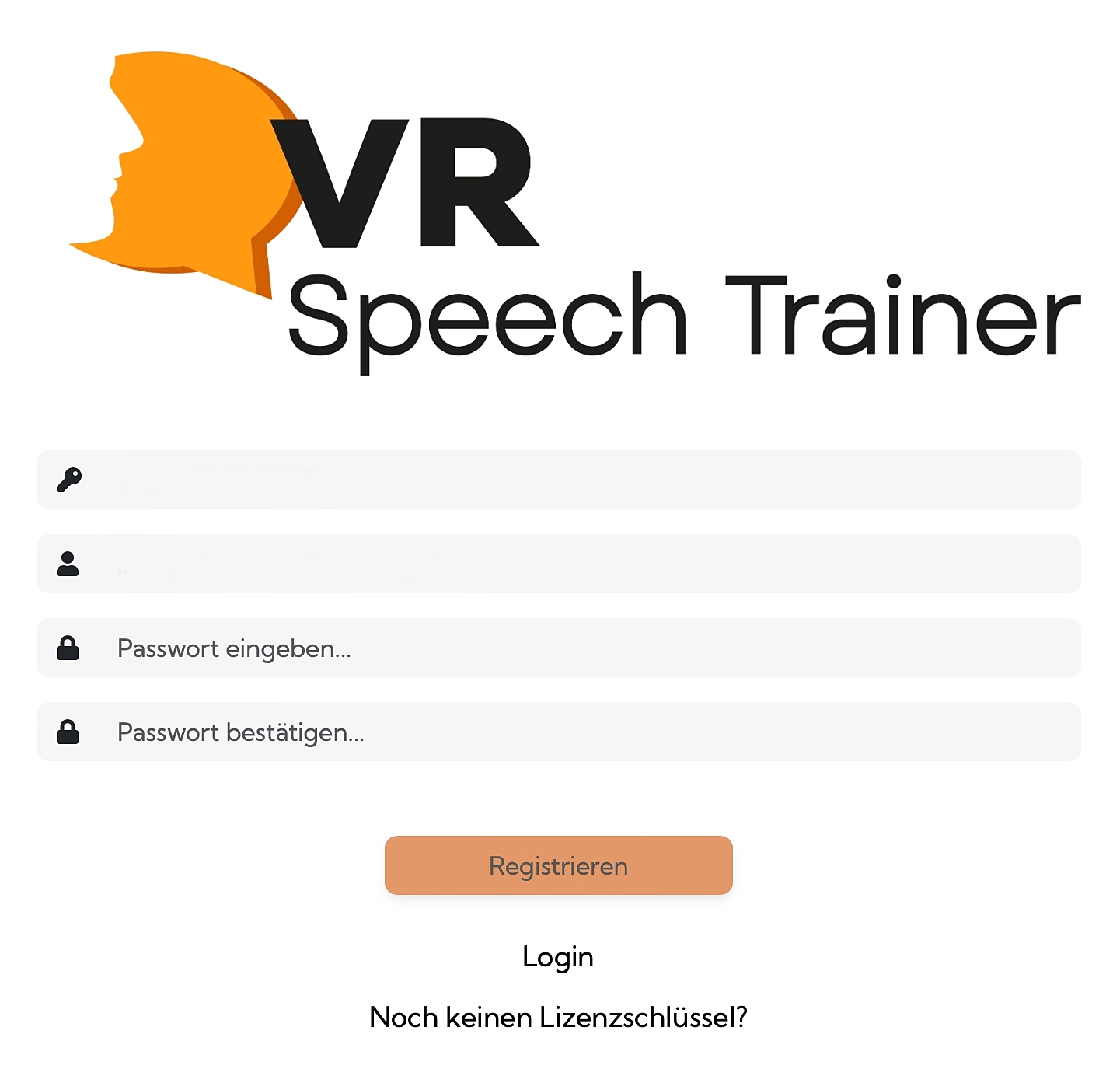
Set Your Password
After clicking the confirmation link, you’ll be redirected to the platform where you can set a secure password.
Enter your password and confirm it by entering it again. Then click “Register”.
Redirect to Login Page
After successfully setting your password, you’ll be automatically redirected to the login page.
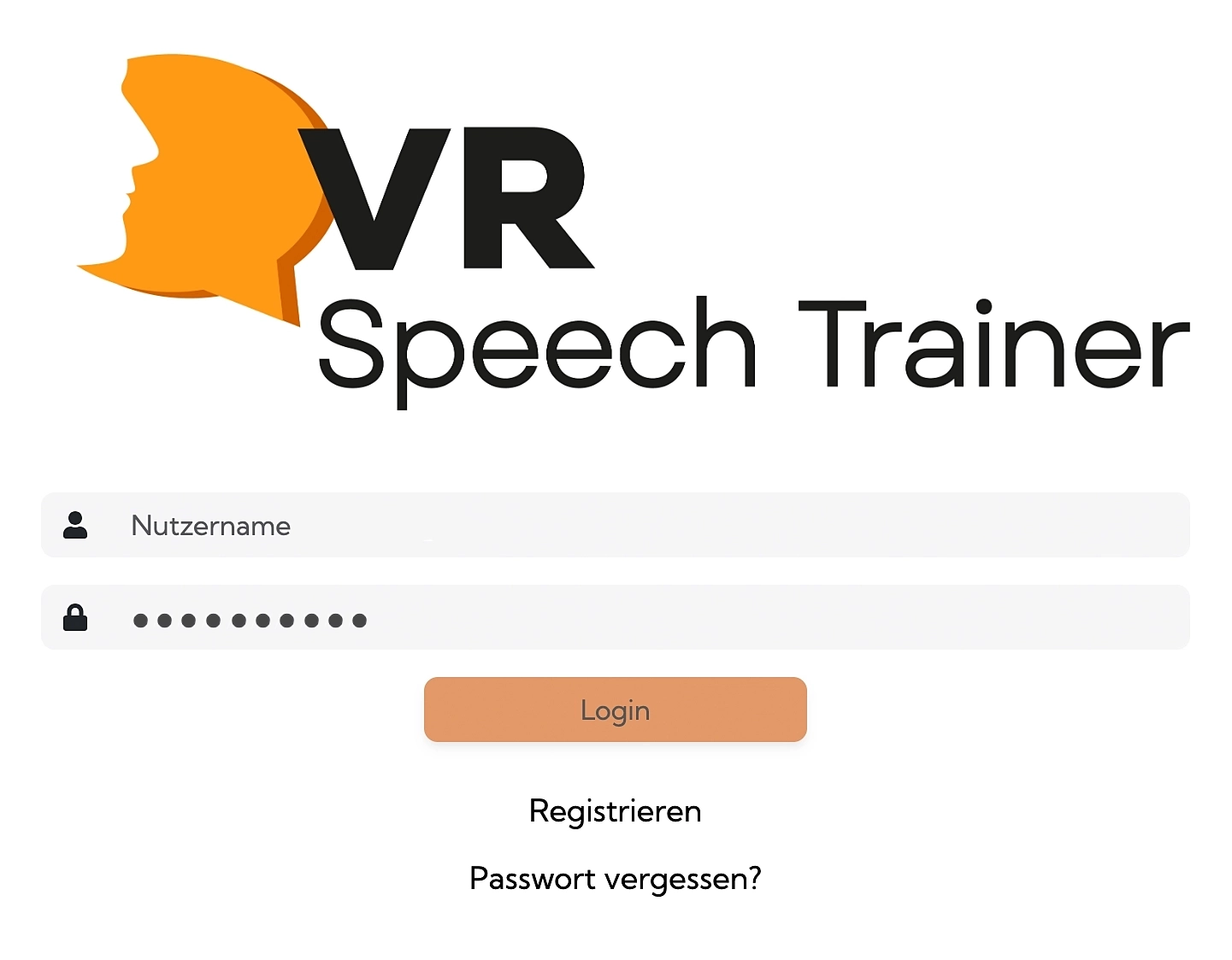
First Login
Log in with your new credentials.
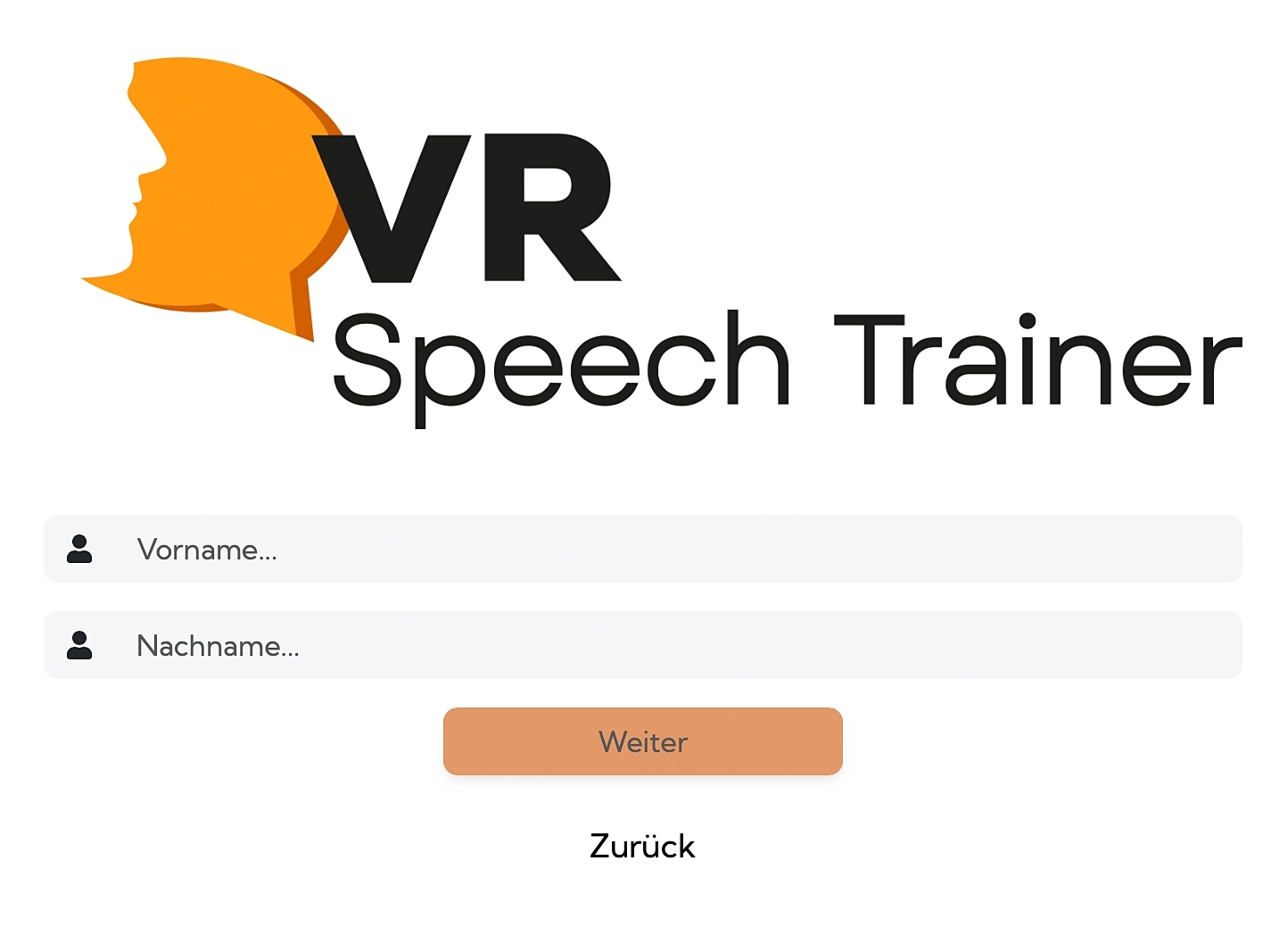
Enter First and Last Name
On your first login, you’ll be asked to provide your first and last name.
Enter your first name
Enter your last name
Click “Continue”
Registration Successful
You’re now successfully logged in and will see the VR Speech Trainer platform dashboard.
Success! Your Trainer Account is now set up. You’ll see a message with your personal code for linking your VR headset.
The following steps are only available in the enterprise licensing model and cover voucher code activation and user management.
Activate Voucher Codes
FFor the initial registration of your Trainer Account, your purchased voucher codes need to be activated.
Required step: Send a brief confirmation email to info@vr-speech.com stating that you have successfully registered as a trainer.
After review by our team, the voucher codes will be assigned to your account. You’ll receive an email notification once the codes are available.
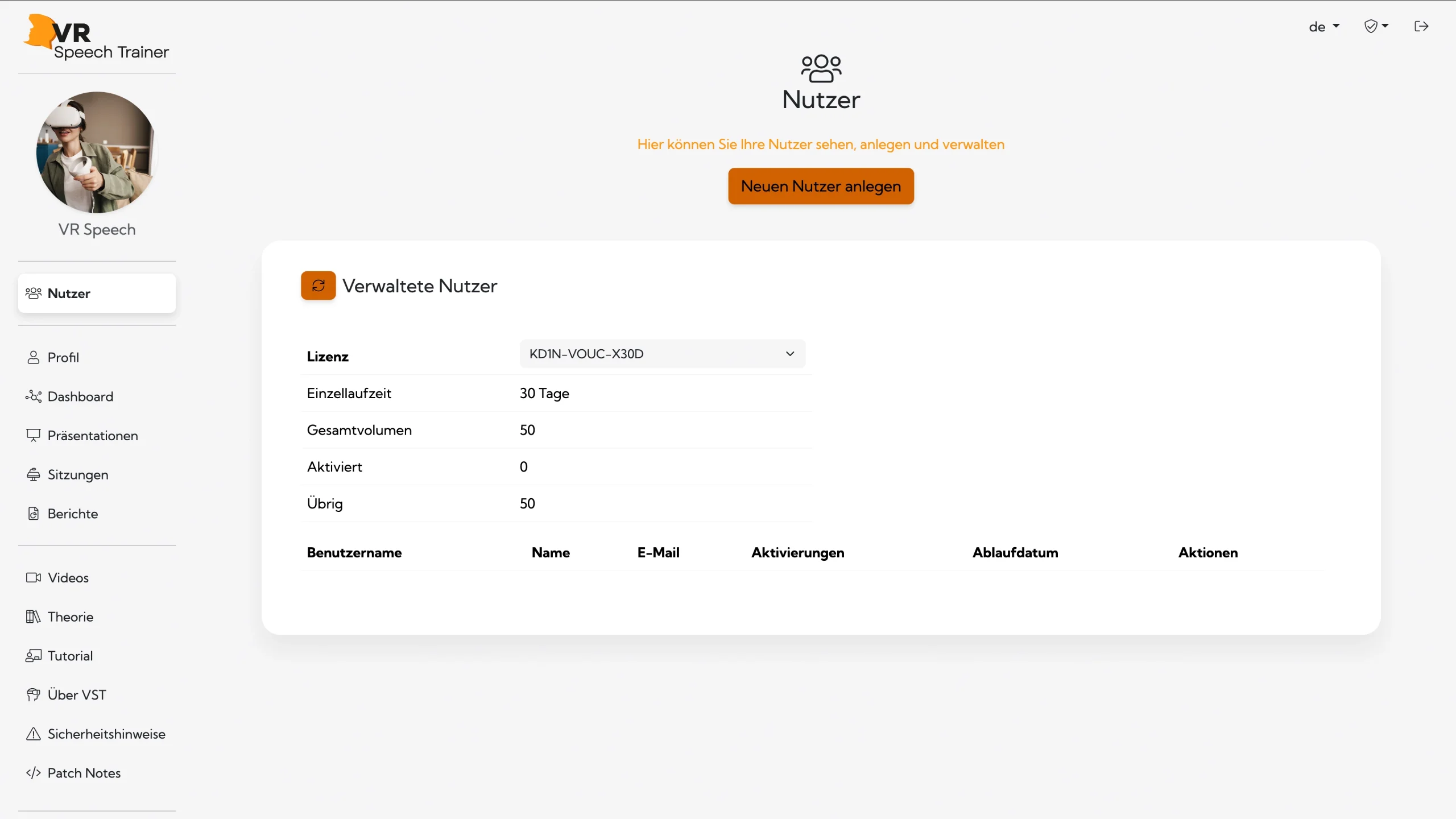
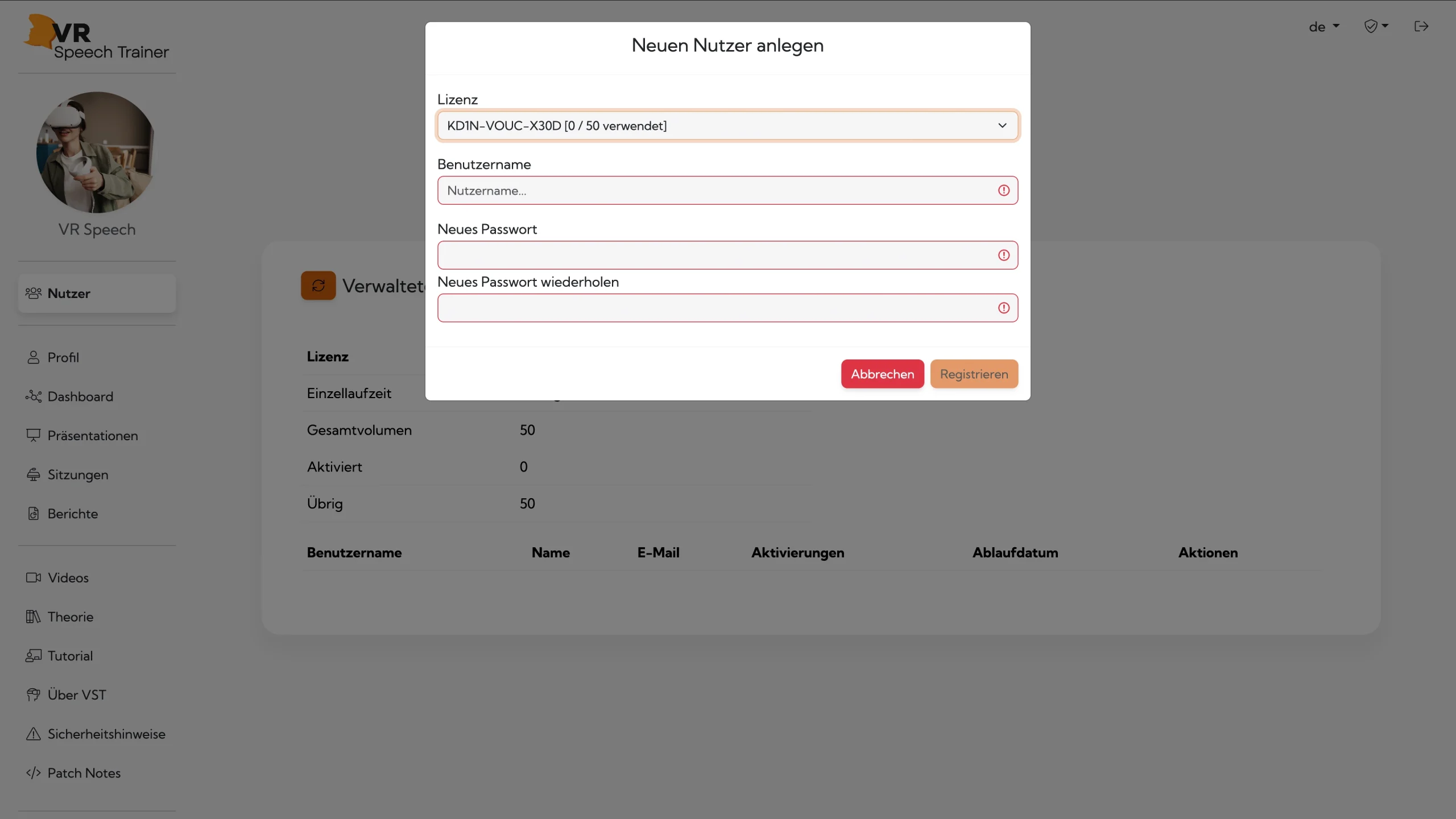
Create and Manage Users
Once your voucher codes are activated, you can create new users.
Important: Provide the username and password to the new user. They can add their email address after first login. Password changes are only possible after entering an email address.
After successfully registering on the VR Speech Trainer platform, we recommend that you first connect your VR headset to your trainer account.
Additional Tutorial Content
The VR Speech Trainer platform features an extensive collection of helpful video and text tutorials covering the use of VR Speech Trainer and the platform. We recommend familiarizing yourself with these resources before your first use to unlock the full potential of VR Speech Trainer.
Register and set up a trainer account.
If you have any questions during registration or use, our support team is happy to help. Just reach out to us, and we’ll assist you quickly and reliably.